
Causes, Fixes & Battery Solutions
If your macbook battery not charging , don’t panic. A charging problem does not always mean that the battery has failed. The issue can come from the power adapter, charging cable, USB-C or MagSafe port, macOS settings, battery health features, or the battery itself. Apple’s current support guidance also notes that a Mac can show “Not Charging” when the connected power source is providing enough energy to run the computer but not enough to charge the battery.
For that reason, it is worth to MacBook Battery Not Charging checking the simple causes before deciding that your MacBook needs a battery replacement. Whether you use a MacBook Air or MacBook Pro, the following troubleshooting steps can help you identify why the battery is not charging and what you should do next.
Why Is My MacBook Battery Not Charging?
One of the first things to check is the charging status shown by macOS. Your MacBook may say “Not Charging,” “Charging On Hold,” “Slow Charger,” or show that the battery has reached a charge limit. These messages do not all mean the same thing.
For example, Apple explains that charging can temporarily pause to help extend battery lifespan. A MacBook can also stop increasing its battery percentage when a charge limit has been reached. In other cases, the charger may simply be too low-powered for the MacBook.
Check Your MacBook Charger and Cable
Start with the MacBook charger and charging cable. A damaged cable, loose connection, incompatible adapter, or insufficient wattage can prevent normal charging. Apple recommends using a suitable power adapter and cable that provide enough power for the particular Mac model MacBook Battery Not Charging. A lower-wattage charger may power the MacBook while failing to charge its battery properly.
If you use USB-C charging, try another compatible charging cable if one is available. Some USB-C cables are designed mainly for data and may not support charging. Apple specifically recommends testing another cable when a MacBook is not charging or only charges when the cable is moved.
Check the Power Outlet
Sometimes the MacBook is perfectly fine and the problem is the power source. Disconnect the adapter, wait a few seconds, and connect it to another known-working wall socket.
You can test the socket with another electrical device. If the outlet works but your MacBook still does not receive power, continue checking the charger, cable, and charging port. Apple also recommends disconnecting and reconnecting the power adapter when troubleshooting charging problems.
Clean the Charging Port
Dust and debris can interfere with a charging connection. If your MacBook uses MagSafe, inspect both the connector and charging port for debris. Apple recommends keeping these areas clean and dry, particularly if the MagSafe indicator light is flashing or charging is not working normally.
For USB-C MacBooks, carefully inspect the USB-C port as well. Avoid forcing objects into the port or using liquids MacBook Battery Not Charging . If the connector does not fit properly or charging repeatedly disconnects, the port or cable may require professional inspection.
Check MacBook Battery Settings
Your MacBook may intentionally limit or pause charging. Optimized Battery Charging is designed to reduce unnecessary battery aging by delaying charging in certain situations. Apple also provides a Charge Limit feature on supported Macs, which can prevent the battery from reaching 100% when the selected limit has been reached.
If your MacBook is stuck at around 80% or another configured percentage, check System Settings > Battery. If you need the battery fully charged immediately, macOS may provide a Charge to Full Now option.
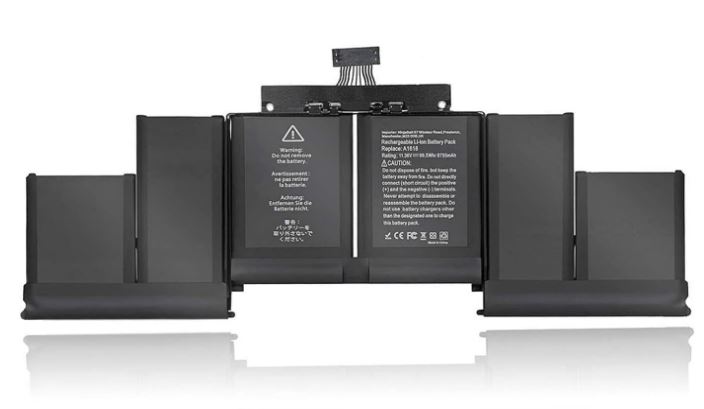
Check MacBook Battery Health
Checking MacBook battery health is another important troubleshooting step. Open System Settings > Battery and look for Battery Health information. Depending on your Mac and macOS version, you may see a status such as Normal or Service Recommended.
A Service Recommended message means the battery’s ability to hold a charge has declined or the battery is not functioning normally. This does not necessarily mean the MacBook cannot be used, but it can indicate that battery service may be appropriate if charging capacity or battery runtime is affecting your daily use.
Restart Your MacBook
A simple restart can sometimes resolve temporary software or charging-state problems. Disconnect the charger, restart the MacBook, and reconnect the charger after the system starts.
If the problem continues, Apple recommends shutting down the Mac, closing the display for about 30 seconds, then opening it and trying to charge again. Intel-based Mac models may also benefit from an SMC reset when troubleshooting certain power-related issues.
Check for a macOS Update
Software updates can improve compatibility, power management, and system stability. If your MacBook is working normally enough to access System Settings, check whether a macOS update is available.
Keeping macOS updated is particularly useful when charging behavior changes after a system update or when battery-related settings do not appear to work as expected. Apple also recommends upgrading macOS as part of general Mac troubleshooting.
When Your MacBook Needs a New Battery
If you have tested the charger, cable, outlet, charging port, and battery settings but your MacBook battery is still not charging, the battery itself may need service. A worn battery can lose its ability to hold or accept a charge properly.
Common warning signs include very short battery runtime, unexpected shutdowns, rapid battery percentage changes, persistent charging problems, and a Service Recommended status. Apple advises using battery-health information reported by macOS rather than relying solely on third-party battery apps.
MacBook Battery Not Charging: When to Get Service
If your MacBook still will not charge after basic troubleshooting, professional inspection may be necessary MacBook Battery Not Charging. The problem could involve the battery, charging port, adapter, cable, or another internal power component.
For Mac laptops with built-in batteries, Apple recommends battery replacement through Apple, an Apple Authorised Service Provider, or an Independent Repair Provider using appropriate parts.
Conclusion
A MacBook battery not charging does not automatically mean you need a new battery. Start by checking the charger, cable, wall outlet, charging port, battery settings, and Battery Health status. Remember that optimized charging and charge limits can intentionally prevent the battery from reaching 100%.
If the MacBook continues to show charging problems after these checks, battery service may be the next step MacBook Battery Not Charging . Identifying the actual cause before replacing the battery can save time and help you choose the right solution for your MacBook model.
Follow Us
Facebook :https://www.facebook.com/LaptopBatteryHub
Instagram :https://www.instagram.com/laptop_o.t/?hl=en
Google Review :https://maps.app.goo.gl/M8nYVZPy6fEzRScc6
Why is my MacBook plugged in but not charging?
Your MacBook may be receiving enough power to operate but not enough to charge, or charging may be temporarily paused by battery-health features.
Why does my MacBook stop charging at 80%?
Optimized Battery Charging, Charge Limit settings, or battery-health management can cause charging to stop before 100%.
Can a bad charger cause a MacBook not to charge?
Yes. An incompatible, damaged, or insufficiently powered adapter or cable can prevent normal charging.
How do I check MacBook battery health?
Go to the Apple menu > System Settings > Battery and check the Battery Health information available for your Mac.